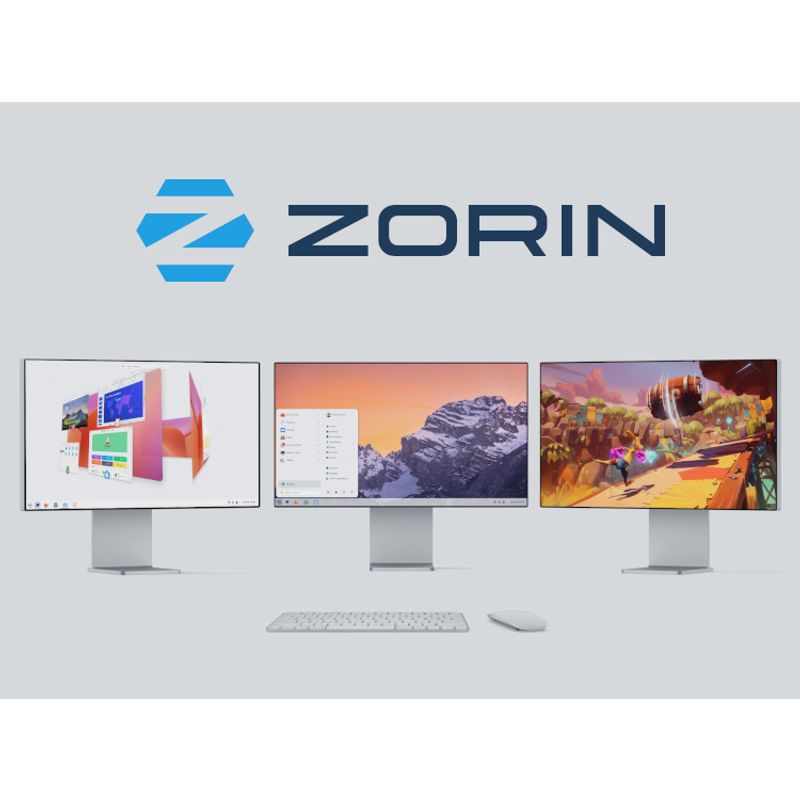
You can easily make Zorin OS look and feel like Windows, macOS, or Linux — here's how
At a glance:
- Zorin OS 18.1 has been downloaded over 3.3 million times since its launch
- The free edition offers four default desktop layouts; the Pro edition adds four more, including macOS and Windows 11 styles
- Extensions such as Zorin Taskbar and Zorin Desktop Cube let you further tweak the GNOME desktop
What is Zorin OS?
Zorin OS is a Linux‑based desktop operating system that aims to provide a familiar experience for users migrating from Windows or macOS. Launched in early 2023, version 18.1 quickly became popular, reaching more than 3.3 million downloads within six months. Reviewers have praised it for its sleek visual design, fast performance, and the depth of its customization options.
The distribution ships in a free edition and a paid Pro edition. Both versions include the Zorin Appearance tool, which acts as a central hub for changing the look and feel of the desktop. While the free edition already offers a solid set of options, the Pro tier unlocks additional layouts and themes that mimic other operating systems more closely.
Customizing the desktop with Zorin Appearance
The Zorin Appearance application lets you switch between layouts, adjust themes, toggle animations, and fine‑tune window behavior. Its Layout tab is the starting point for most users. The free version provides four built‑in layouts:
- Two Windows‑like layouts (classic and modern styles)
- A GNOME layout with a traditional panel
- A GNOME layout that uses a top‑bar only
From there you can modify panel corner radius, length, opacity, and enable features such as Jelly Mode, Spatial Windows Switcher, Focus on Hover, and Raise Windows When Focused. These settings give the desktop a distinct personality without requiring any code changes.
Pro version adds four premium layouts
If you purchase Zorin OS Pro for $47.99, you unlock four extra layouts that broaden the visual palette:
- macOS‑style layout
- Windows 11‑style layout
- Ubuntu‑style layout
- KDE Plasma‑style layout
These premium layouts are fully editable, meaning you can still adjust corner radii, icon sizes, and animation speeds to suit your taste. The Pro edition also includes a few extra themes and higher‑resolution icon packs that further narrow the gap between Zorin OS and the operating systems it emulates.
Extending functionality with GNOME extensions
Beyond the Appearance tool, Zorin OS supports the standard GNOME Extensions ecosystem. The Extensions app (or the Extensions Manager) lets you install and enable add‑ons that modify the desktop in more granular ways. The author of the source article highlighted the following extensions as particularly useful:
- Custom Hot Corners – Extended – defines custom actions for each screen corner
- Zorin Taskbar – adds extra taskbar customization options
- Zorin Tiling Shell – introduces advanced tiling window management
- Zorin Window Move Effect – customizes window‑movement animations, especially effective with Jelly Mode
- Zorin Desktop Cube – restores the classic 3‑D cube effect when switching workspaces
Combining these extensions with the tweaks from Zorin Appearance can produce a desktop that feels uniquely yours, whether you prefer a minimalist GNOME look or a full‑blown Windows replica.
Tips, pitfalls, and final thoughts
Customizing Zorin OS is an iterative process. Because the system stores settings in user‑specific configuration files, you can experiment for a few minutes or invest several hours without risking system stability. If a change doesn’t work out, the Appearance app offers a simple “reset to defaults” button, and most extensions can be disabled with a single click.
Power users who have spent years tweaking Linux desktops will find Zorin OS’s approach familiar, while newcomers may appreciate the guided layout picker that reduces the learning curve. The Pro edition’s additional layouts and themes justify the modest price for anyone who wants a polished, out‑of‑the‑box experience that mirrors Windows 11 or macOS.
In short, Zorin OS gives you the tools to make the desktop look and behave exactly how you want—whether that means a Windows‑style taskbar, a macOS‑style dock, or a pure GNOME environment enhanced with custom extensions.
FAQ
What desktop layouts are included in the free version of Zorin OS?
Which additional layouts become available after purchasing Zorin OS Pro?
What GNOME extensions does the article recommend for enhancing Zorin OS?
More in the feed
Prepared by the editorial stack from public data and external sources.
Original article